SBI CSP10/7/2026
SBI CSP Passbook Printer Mapping Process – PLQ-50CSK Installation & Reimbursement Guide
SBI CSP ke liye new passbook printer purchase karne ke baad mapping, invoice submission, SBI LHO approval, software installation aur Passbook Not Mapped error check karne ka complete process.
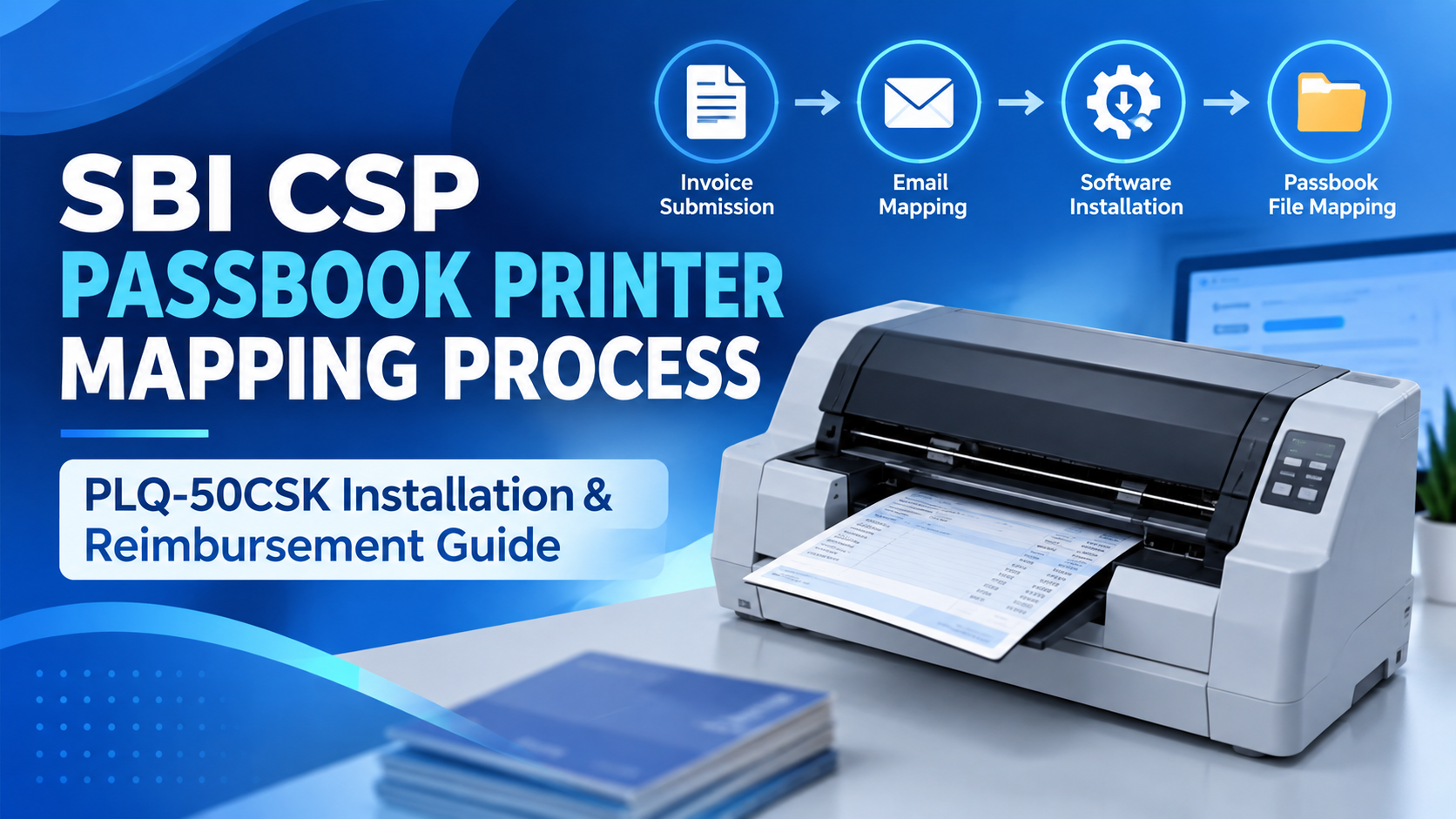
SBI CSP Passbook Printer Mapping Process
SBI CSP Point ke liye new passbook printer purchase karne ke baad printer ko directly CSP Portal me use nahi kiya ja sakta. Pehle printer ki mapping process complete karni hoti hai.
Is guide me hum step-by-step samjhenge ki new passbook printer purchase karne ke baad CSP ko kya karna hai, CBC ka kya role hai, SBI LHO se mapping kaise hoti hai aur mapping ke baad printer software kaise install karna hai.
1. New Passbook Printer Purchase Karne Ke Baad CBC Ko Inform Karein
CSP ne jis company/CBC ke through CSP Point liya hai, sabse pehle us CBC ko new passbook printer ke baare me inform karna hoga aur Passbook Printer Mapping ke liye request karni hogi.
Agar CSP ne naya PLQ-50CSK Passbook Printer purchase kiya hai, to uska purchase invoice CBC ko provide karna hoga.
2. Invoice Me CSP Name Aur CSP Code Zaroor Hona Chahiye
Passbook printer ka invoice banwate samay dhyan rakhein ki invoice me CSP ki correct details honi chahiye.
Invoice me mainly:
CSP Name: Registered CSP ka naam
CSP Code: Correct SBI CSP Code
Printer Details: Purchased passbook printer ki details
CSP Name aur CSP Code ke saath invoice banana important hai, specially jab reimbursement process applicable ho.
3. CBC SBI LHO Ko Mapping Request Bhegega
CSP se required details aur printer invoice receive hone ke baad CBC, SBI LHO ko email karega.
Email ke saath passbook printer ka invoice attach kiya jayega aur CSP ke new printer ko map karne ke liye request ki jayegi.
Is stage par CSP ko directly printer mapping karne ki zarurat nahi hoti. Mapping request CBC ke through SBI LHO ko send hoti hai.
4. SBI LHO Printer Mapping Karega
CBC ki request receive hone ke baad SBI LHO side se passbook printer ki mapping process ki jayegi.
Mapping complete hone ke baad CBC ko update milta hai.
Uske baad CBC concerned CSP ko inform karega ki passbook printer mapping complete ho gayi hai.
5. Passbook Printer Software Download Karein
Mapping confirmation milne ke baad CSP ko passbook printer ka required software install karna hoga.
CSP R.K Technical Support portal se required Passbook Printer Software download kar sakta hai.
Software ko system me properly install karein.
6. Supporting File Ko Correct Folder Me Paste Karein
Software installation ke saath jo required supporting file diya gaya hai, use correct system folder me paste karna hota hai.
System me:
C Drive → TCS Kiosk Pinpad → Bin
folder open karein.
Required supporting file ko Bin folder ke andar paste karein.
File paste karne ke baad system ko Restart karein.
7. System Restart Ke Baad CSP Portal Open Karein
System restart hone ke baad CSP Portal ko open karein aur normal login karein.
Login ke baad:
Update Passbook option par jayein.
Wahan se passbook printing test karein.
8. Mapping Successful Hai To Passbook Print Ho Jayega
Agar SBI LHO side se printer ki mapping properly complete ho gayi hai aur required software/supporting files correctly installed hain, to Update Passbook option se passbook printing start ho jayegi.
“Passbook Not Mapped” Error Ka Matlab Kya Hai?
Agar Update Passbook option use karte waqt:
“Passbook Not Mapped”
error show hota hai, to iska matlab printer ki mapping abhi complete nahi hui hai ya mapping system me properly reflect nahi ho rahi hai.
Aise case me CSP ko apne CBC ko inform karna chahiye.
CBC required details check karke SBI LHO ke saath mapping status follow-up karega.
Important: New Printer Purchase Karte Samay Invoice Ka Dhyan Rakhein
SBI CSP ke liye new passbook printer purchase karte waqt invoice CSP Name aur CSP Code ke naam/details se banwana important hai.
Proper invoice reimbursement process me required ho sakta hai.
As per the process described here, eligible CSPs ko applicable terms ke according ₹610 per month passbook printer reimbursement mil sakta hai.
Isliye printer purchase ke samay invoice details galat ya incomplete na rakhein.
Quick Process Summary
New Printer Purchase
↓
CBC ko inform karein
↓
CSP Name & CSP Code wala Invoice submit karein
↓
CBC SBI LHO ko Invoice ke saath Mapping Mail karega
↓
SBI LHO Printer Mapping karega
↓
CBC CSP ko Mapping Confirmation dega
↓
Passbook Printer Software Download & Install karein
↓
Supporting File → C Drive → TCS Kiosk Pinpad → Bin me paste karein
↓
System Restart karein
↓
CSP Portal → Update Passbook → Printing Test karein
Agar Passbook Not Mapped error aaye, to CBC ke through mapping status follow-up karein.
Important Note
Ye guide SBI CSP users ke practical technical support ke liye hai. Mapping, reimbursement aur software-related process time ke saath change ho sakta hai. Latest process aur reimbursement eligibility ke liye apne CBC/concerned SBI authority se confirmation lena advisable hai.
R.K Technical Support ek independent technical support platform hai aur State Bank of India ka official website ya authorized representative nahi hai.