All software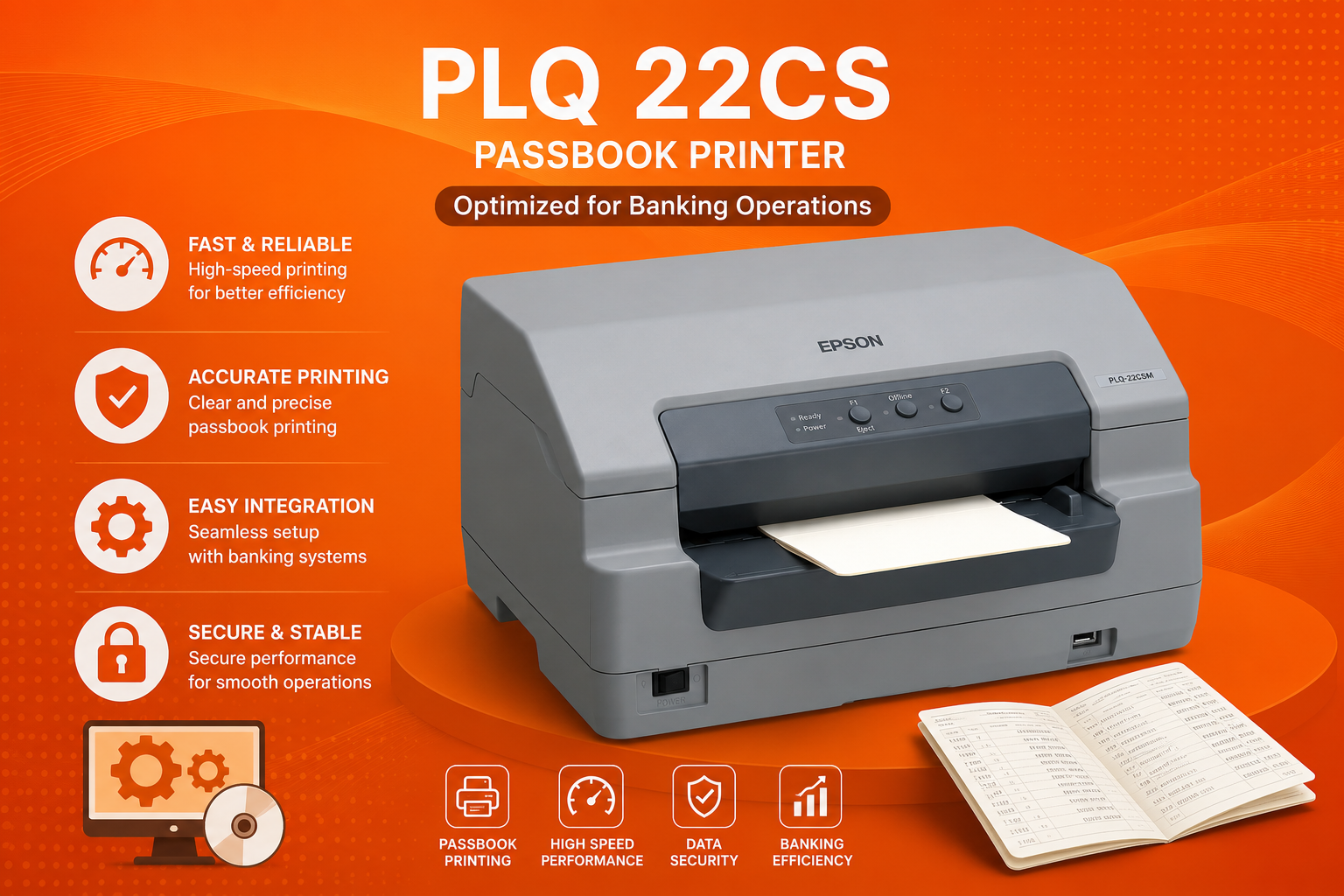
Bank of Baroda BCBank of Baroda BCvPLQ 22CS
Epson PLQ-22CS Passbook Printer
Bank of Baroda PLQ22CS Passbook Printer Software ensures fast, accurate, and secure passbook printing for smooth banking operations. Easy to install and optimized for reliable performance.
4.83MB Windows 10/11 Released 7/6/2026 Check the file with your preferred antivirus before installation 18 downloads
About Epson PLQ-22CS Passbook Printer
Bank of Baroda PLQ22CS Passbook Printer Software is designed to support efficient and reliable passbook printing using the Epson PLQ22CS Passbook Printer. The software enables smooth printing of customer account details, transaction history, and banking records with high accuracy and speed. It helps bank branches streamline daily operations while ensuring clear, secure, and professional-quality passbook printing.
The software is easy to install and configure, making it suitable for both new installations and software updates. It is optimized for stable performance, minimizing printing errors and improving workflow efficiency. Whether you need to install the printer software for the first time or update an existing setup, this solution ensures seamless compatibility with the Epson PLQ22CS Passbook Printer used in Bank of Baroda branches.
Technical details
- Version
- vPLQ 22CS
- File size
- 4.83MB
- Supported Windows
- Windows 10/11
- Bank
- BOB
- Category
- Bank of Baroda BC
- Last updated
- 7/9/2026
- Downloads
- 18
- Virus scan
- Check the file with your preferred antivirus before installation
Installation & setup
- Download the file using the button on this page and wait for it to finish.
- Close any earlier version of Epson PLQ-22CS Passbook Printer that is currently running.
- Right-click the downloaded file and choose Run as administrator.
- Follow the on-screen installer steps and keep the default location unless you need to change it.
- Restart the computer if the installer asks you to, then open the application.
Common issues
- Check that your Windows version matches the supported systems listed above.
- If setup fails midway, uninstall the previous version and reinstall the correct build.
- For printers and devices, confirm the USB/network connection and power before installing.
- If the application does not start, restart it once, then restart the computer.
- Make sure any required drivers or runtime components are installed first.
Frequently asked questions
Ready to download Epson PLQ-22CS Passbook Printer?
Free download, no sign-up required.
Download for BOB BCPlease verify software compatibility with your device and operating system before installation.
Useful CSP/BC tools
Free browser-based tools for everyday counter work.
JPG to PDFTurn photos of documents into a clean, printable PDF.Merge PDFCombine several PDFs into one file in the order you choose.Compress PDFShrink a PDF so it fits portal upload limits.PDF to JPGExport every page of a PDF as a high quality JPG image.Compress ImageReduce JPG, PNG or WEBP size with a quality slider.CSP Photo & ID PrintingPrepare passport-size photos and simple ID cards on an A4 sheet for easy printing.
Browse all CSP tools Government scheme closure
Generate ready-to-use PMJJBY, PMSBY and APY closure request letters in your browser.
Open letter generator